

Welcome to Your New Financial Aid Portal: Student Financial Planning (SFP)
We’re excited to introduce you to Student Financial Planning (SFP), a smarter, simpler, and more accessible way to secure the funding you need for your education. This modern portal is fully optimized for viewing and managing your aid on any device, whether you’re using a phone, tablet, or laptop!
Usage of Student Financial Planning (SFP)
The SFP portal is currently being launched for students attending one of the following six Virginia Community College System (VCCS) colleges:
- Eastern Shore Community College
- Germanna Community College
- Northern Virginia Community College
- Piedmont Virginia Community College
- Tidewater Community College
- Virginia Peninsula Community College
Navigating Your Financial Aid Systems: SIS vs. SFP
As we transition to the new SFP system, you will need to use both your existing Student Information System (SIS) and the new SFP portal, depending on the task and the academic year.
Use the guide below to know exactly where to go for what information:
| Task / Information | Continue to Use SIS | Start Using SF |
|---|---|---|
| View Aid Eligibility for 2025-2026 Academic Year & Prior | SIS Financial Aid Tile – Use this to manage and review financial aid eligibility through the Summer 2026 term. | N/A |
| View Aid Eligibility for 2026-2027 Academic Year & Later | SIS Tile – Continue to use this to view messages in the Message Center from the Financial Aid Office. | SFP Portal – Use this to manage and review financial aid eligibility for the Fall 2026 term and beyond. |
| Profile Management | Profile, Action Items, and Messages | N/A |
| Payments & Enrollment | Tuition & Payments, Class Enrollment | N/A |
| Academic Records | Navigate, Academic Records & Progress | N/A |
Important Note: For the 2025-2026 year, you will still primarily use the SIS Financial Aid Tile. The SFP portal will be your home for all financial aid tasks and information starting with the 2026-2027 FAFSA and awarding cycle, which begins with the Fall 2026 term.
Logging into the SFP Student Portal
Steps:
- Log into your MyVCCS account
- Select SIS and then the “Financial Aid” tile on your home page
- Select the school that you are associated with to view the academic years
- Select the appropriate academic year
- A new window will open in the student’s browser
- The student will enter their login information for their institution to securely access their financial aid information.
- To view your aid, submit documents, or complete other tasks via My Financial Aid, the first time you access My Financial Aid, you will be prompted to consent to conduct business electronically.
Uploading & Submitting Documents in the SFP Student Portal
From the My Financial Aid home page, click the Documents tab at the top to submit a document. Only the owner can upload the requested document. If your parent or a guest is the owner, they will be able to complete the tasks once they are granted access.
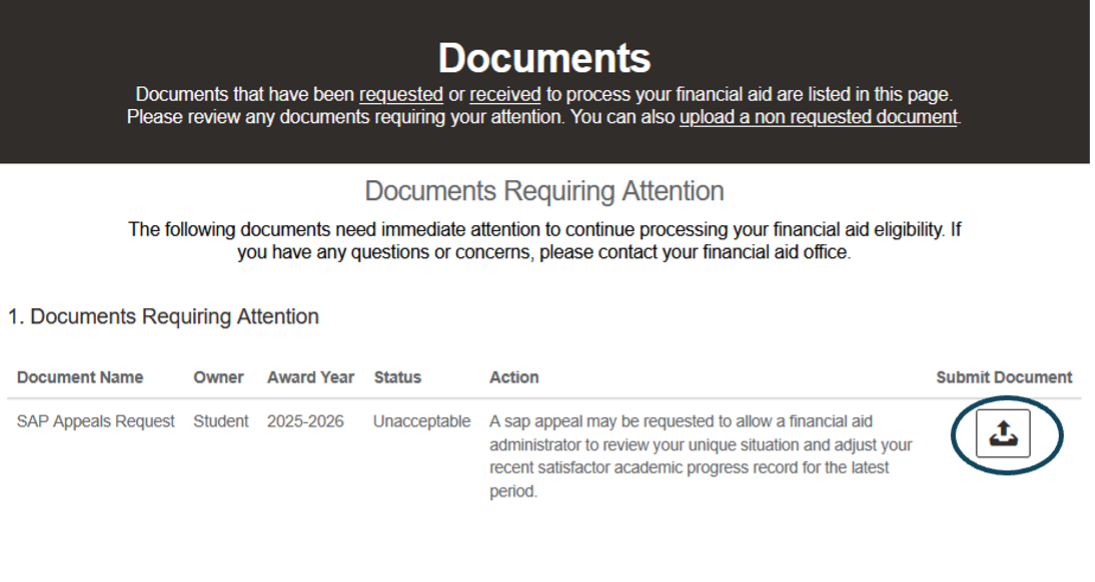
On the Documents page, any Documents requiring attention will be listed, and a Submit Document button will appear next to each. All requested documents will be listed under Documents Requiring Attention.
Previously submitted documents will appear in the Document History at the bottom of the page. If a previously submitted document needs to be edited or resubmitted, click the Update Document button and follow the steps to re-upload.
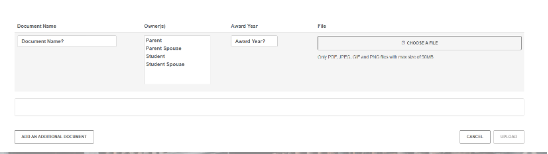
Important Note: If the Owner and Award Year fields are grayed out, then the first step will be to CHOOSE A FILE.
Steps
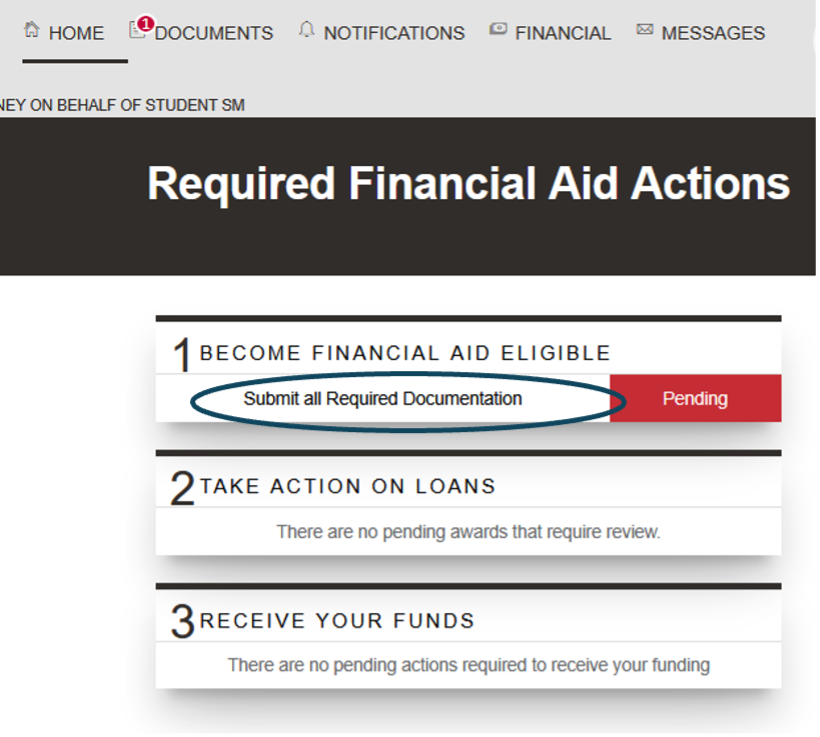
- Log into SFP using the school’s Student Financial Planning tile
- Select the items on the home page that indicate Pending
- In this instance it is to submit required documentation
- The student could also select “Documents” in the header section as it is the notification icon next to it
3. Review the required documents. From here the student can select the icon under “submit document” and they can also select “upload a non-requested document” if there is additional information they need to provide to their institution
4. The student can select to upload a document
a. If they are completing a first submission, they will select “Choose a file”
b. If they are resubmitting a document they can select to replace a document or add an additional file.
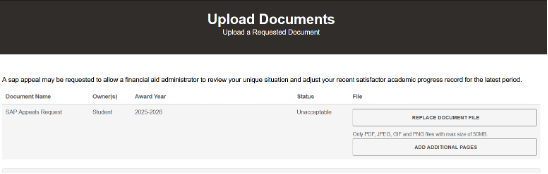
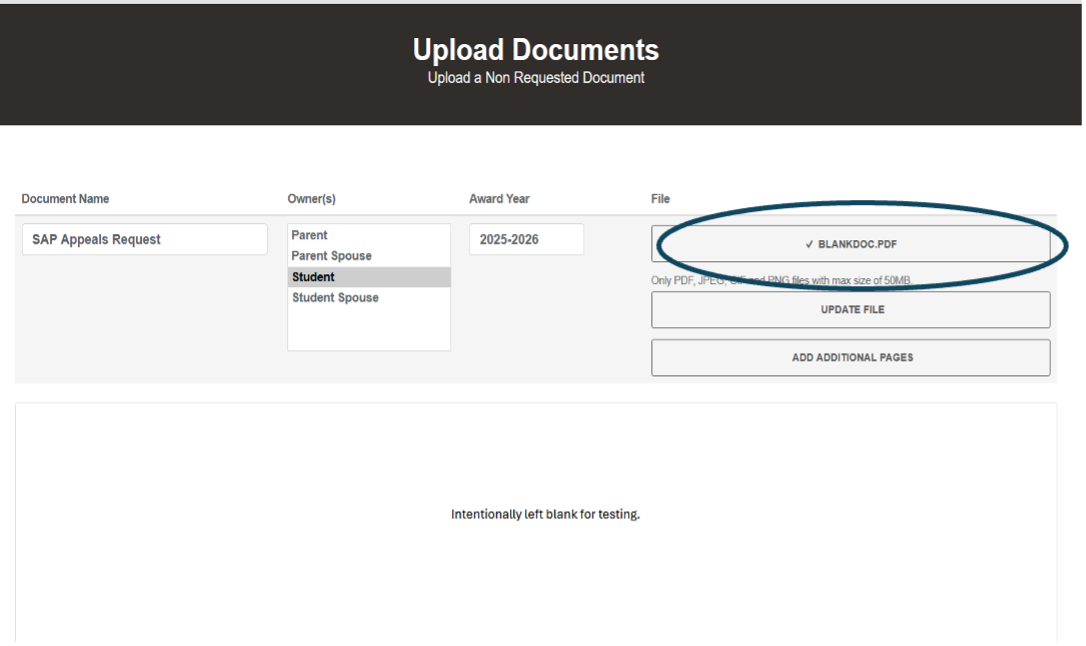
5. Once the student uploads a file, they’ll see the name of the document listed in addition to a preview of the document that they uploaded. If there is metadata entry required for their document, they can also complete those fields upon upload.
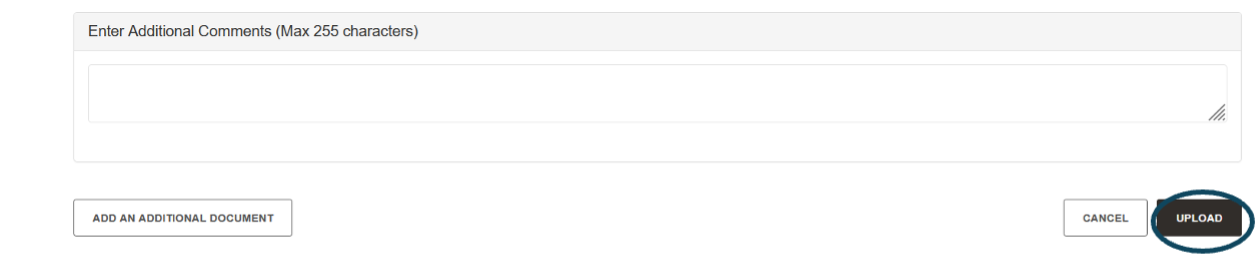
6. Once the student has uploaded documents and completed all required metadata fields, they can enter any relevant comments and select upload.
Messages and Notifications in the SFP Student Portal
The notifications and messages tab highlights additional action items and/or communications that need your immediate attention to continue processing your Financial Aid.
Steps:
- Log into SFP using the school’s Student Financial Planning tile
2. Navigate to the appropriate tab for the student to review their outstanding tasks

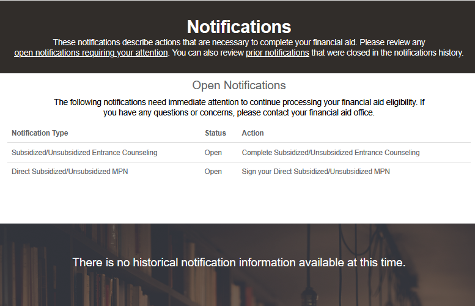
3. To review any notifications select “Notifications”
For example: You are required to complete entrance counseling
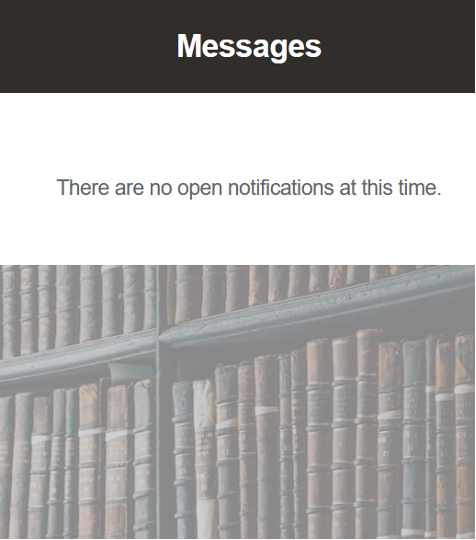
4. To review messages, select “Messages”
Granting Guest Access to Authorized Users in the SFP Student Portal
In order for your parent, guardian or someone else to access your My Financial Aid information, you will first need to grant them guest access to view your information.
Steps:
- Log into SFP using the school’s Student Financial Planning tile
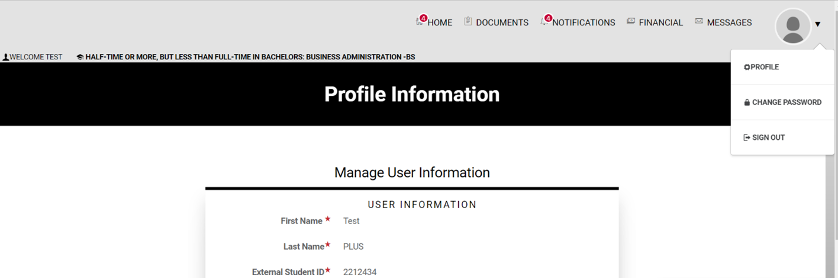
2. From the home page, select the drop-down box in the upper right corner to display their ‘Profile Information.’ Click on ‘Profile’ to have the following page display:
3. Scroll down to see your User Information as well as the information necessary to complete Proxy/Guest Access.
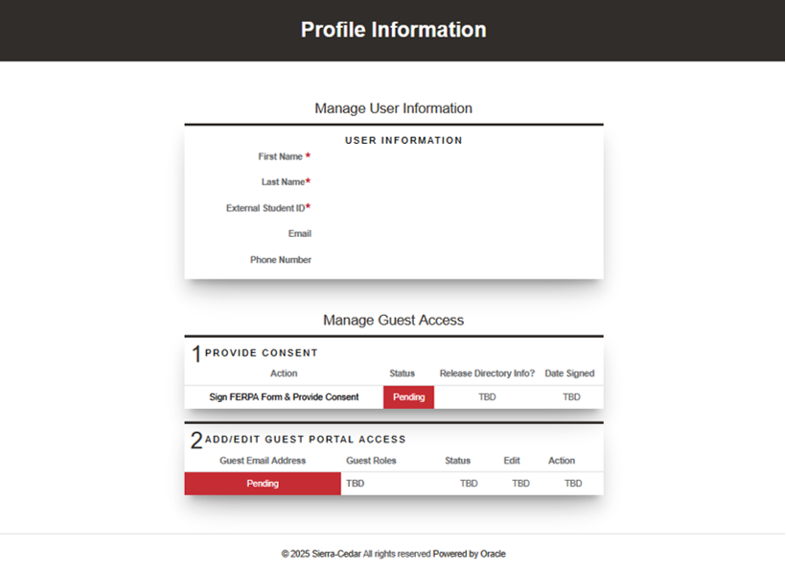
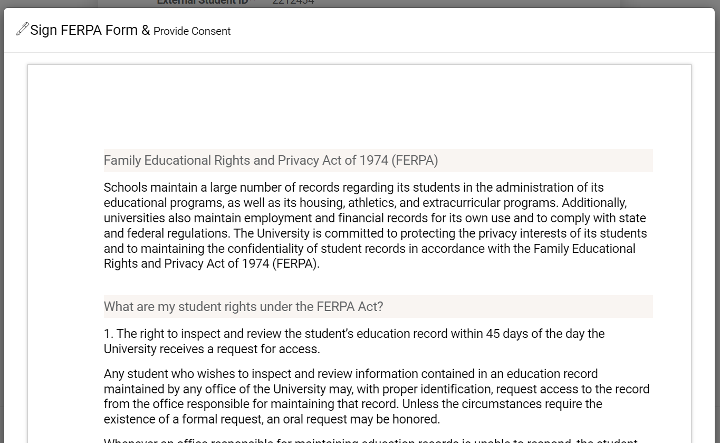
4. Click on ‘Sign FERPA Form & Provide Consent’ to open the FERPA form.
5. The FERPA form will be displayed:
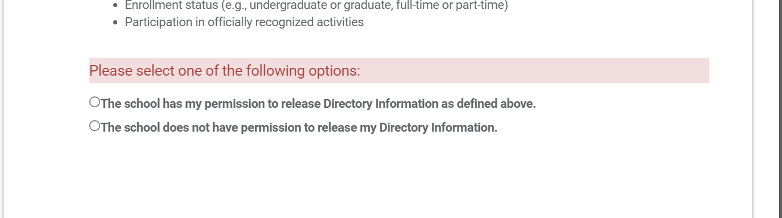
6. Select an option (see pink box below).
7. Scroll down to select “I Accept, then sign, and click “Sign and Finish”
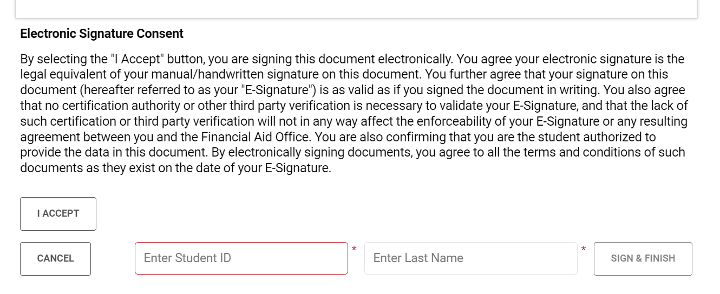
8. Once FERPA is completed and accepted, Step 1 Provide Consent will designate ‘Completed’ and the icon to add a guest will appear (picture of a person with a plus sign).
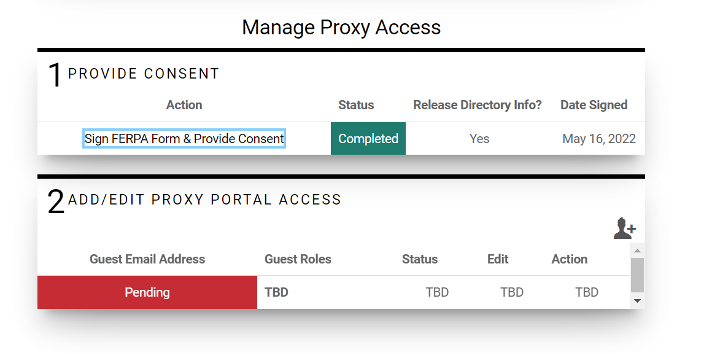
9. Click on the ‘add a person’ icon to make the Add/Edit Proxy Portal Access email link open:
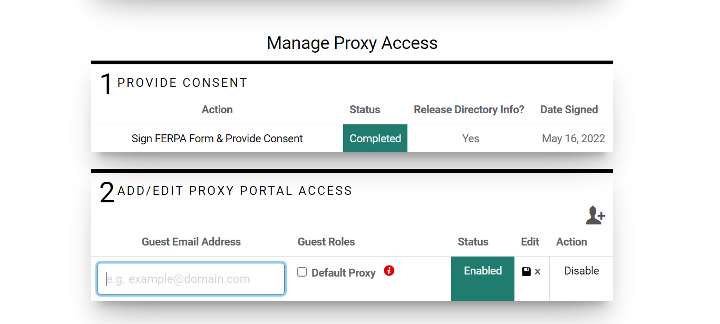
10. Enter the guest’s email address that has permission to access the student’s information in SFP. Select Default Proxy. Click the ‘save’ button under Edit. This will enable the guest’s access.
11. If you would like to add multiple guests, repeat steps 9 & 10.
Your guest will be able to log into My Financial Aid using the email address that you provided as the username and your VCCS Student ID as the password. They will then be prompted to create a new password. The guest will need to accept the Consent to Conduct Business Electronically. They can now access My Financial Aid to perform any tasks needed.